Calendar
The Calendar module is the scheduling workspace in ZeyOS. Use it to plan appointments, invite internal or external participants, and coordinate time-based work across teams.
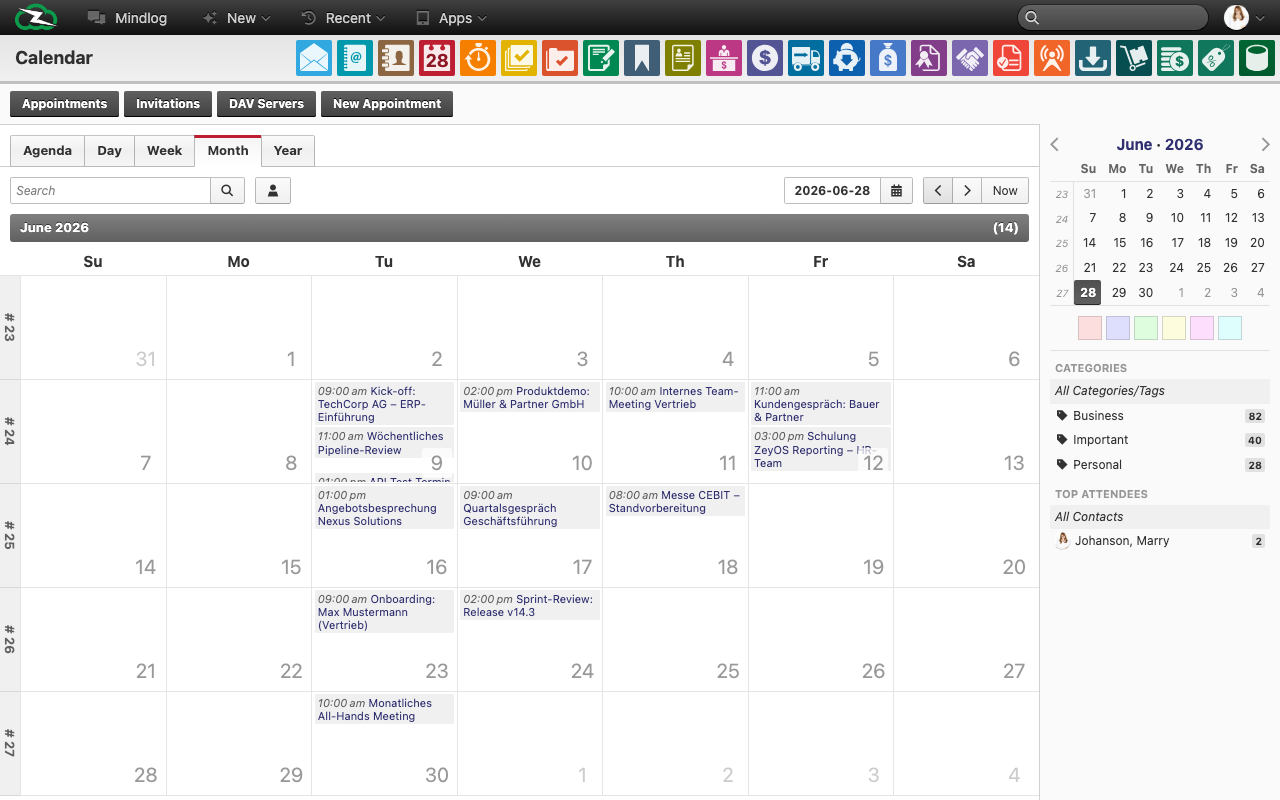
What This Page Is For
Use Calendar when appointments need dates, participants, ownership, recurrence, and visibility inside the ERP instead of being managed informally.
What You See on the Page
The live calendar supports several viewing modes:
- Agenda
- Day
- Week
- Month
- Year
The module also includes:
- date navigation and a quick jump back to the current date
- an Appointments list view
- an Invitations area
- a DAV Server action for CalDAV integration
- a New Appointment action
- sidebar filters such as mini calendar, colors, categories, and top participants
Week View
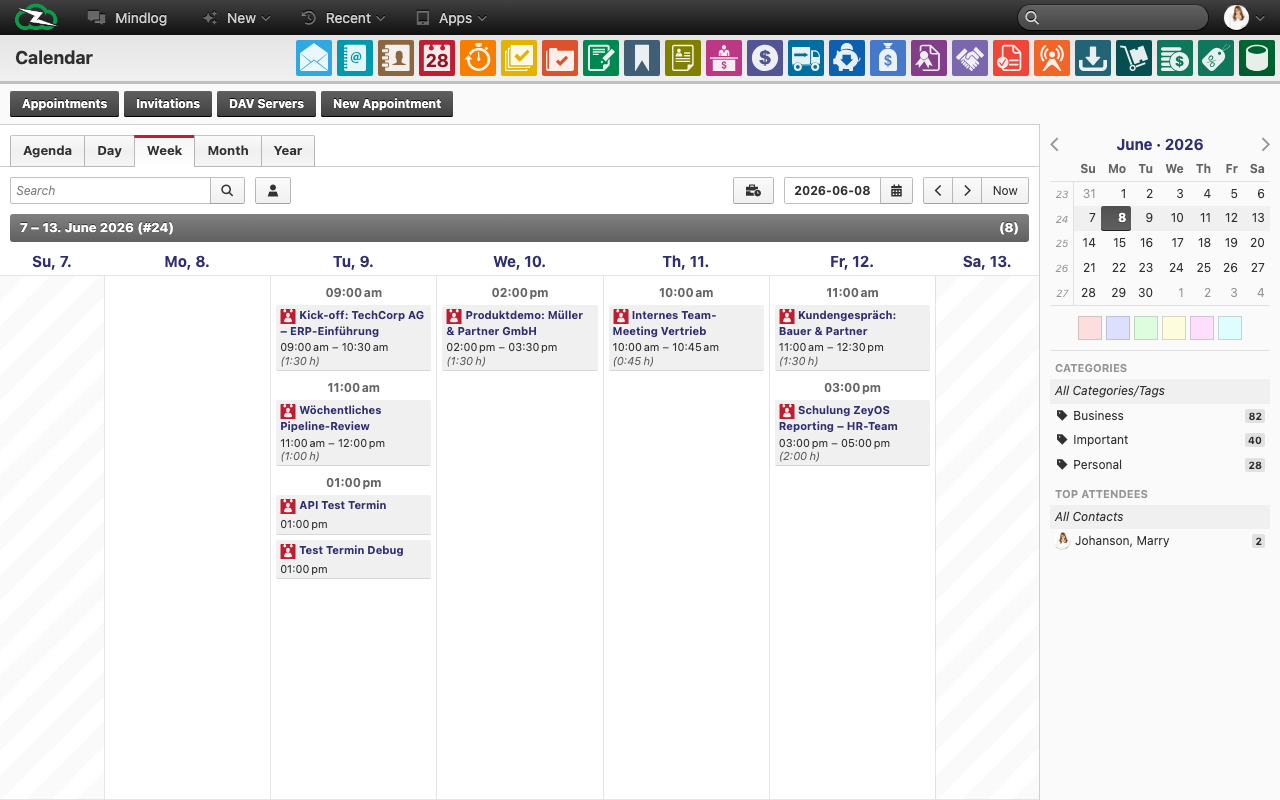
The week view lays out all appointments in time-slot columns, making it easy to spot overlaps and plan the working day. Use the arrow buttons in the toolbar to step forward or back by one week.
Agenda View
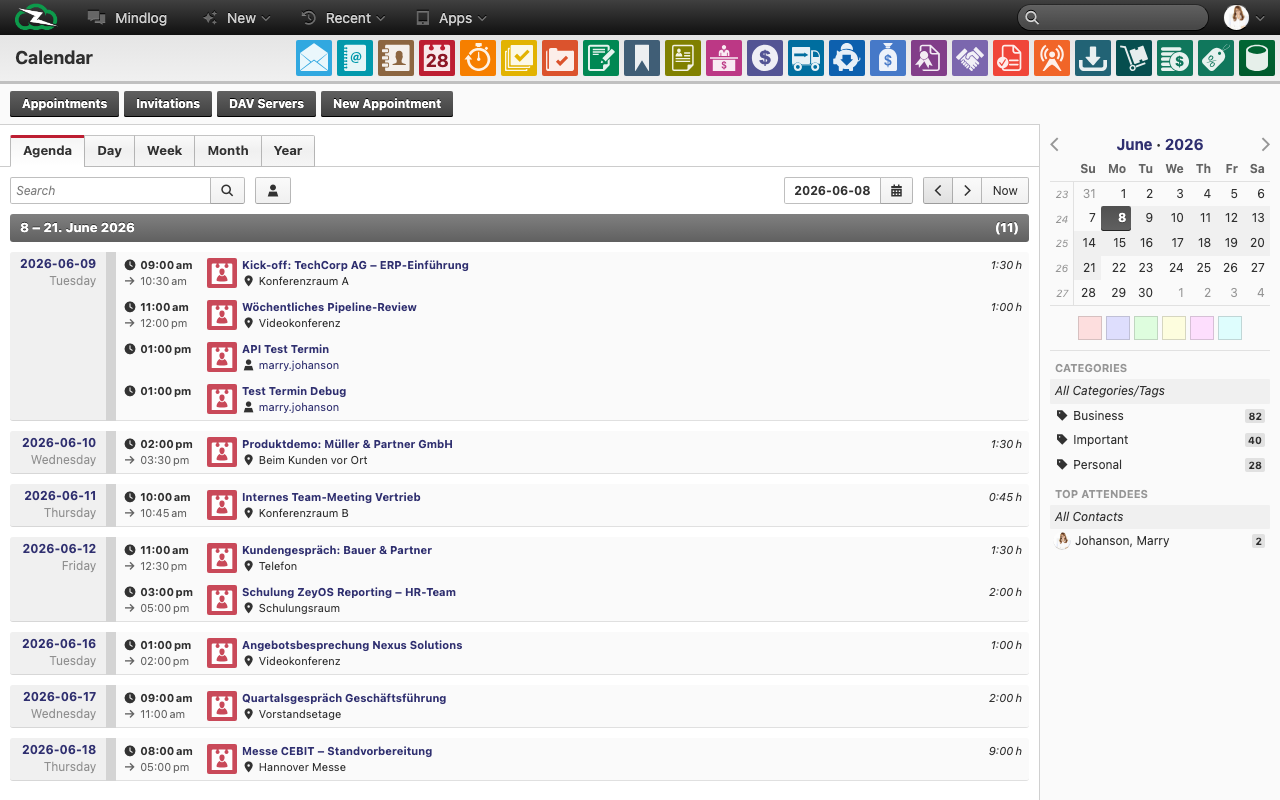
The agenda view presents appointments as a chronological list grouped by date range. It is the most compact view for scanning what is coming up without the grid layout of day or week.
Appointments List
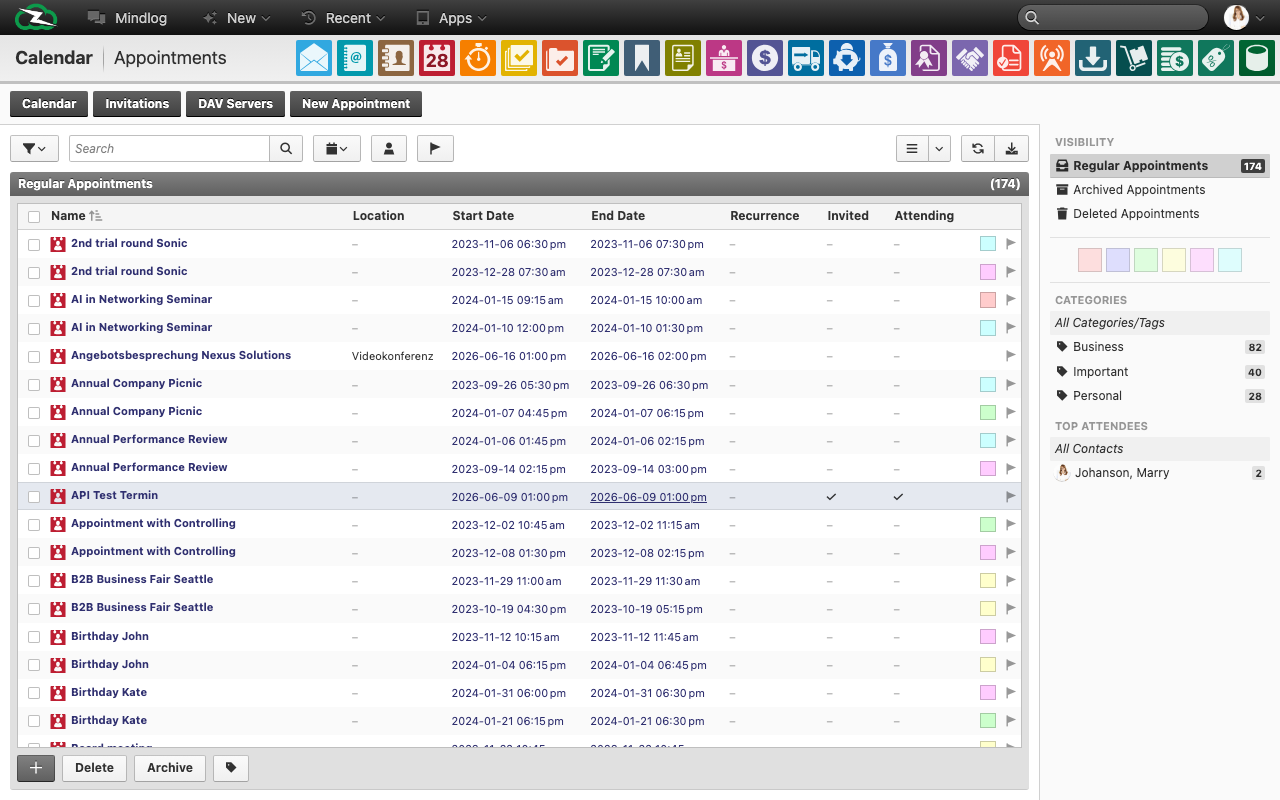
The Appointments tab switches from the calendar grid to a flat sortable table. Use this view when you need to bulk-review, filter, or act on appointments rather than reading them in time context.
Typical Workflow
- Create the appointment from the current view or via New Appointment.
- Enter title, date range, assignee, owner, and location.
- Add participants and recurrence if the event repeats.
- Use categories, colors, and tags to keep the calendar understandable.
- Review invitation status and update the appointment as it progresses.
Invitations and Participants
Appointments can include both internal users and external contacts. The Invitations area is where you:
- add internal users so the event appears in their calendars
- add external contacts with name and email
- review invitations received from other users
This makes Calendar more than a private planner. It is also a lightweight coordination tool across teams and customer-facing appointments.
Appointment Statuses
In the appointment list view, the workflow can include states such as:
- Draft
- Not Started
- Awaiting Approval
- Approved
- Dismissed
- Active
- Inactive
- In Evaluation
- Cancelled
- Closed
These states help distinguish planning, approval, execution, and completed calendar work.
Best Practices
- Use colors and categories consistently across the team.
- Add participants instead of relying on free-text descriptions when attendance matters.
- Use recurring appointments for stable routines instead of recreating the same meeting repeatedly.
- Configure CalDAV when users also need the calendar in external tools or on mobile devices.
- Link appointments to relevant records when the meeting belongs to a customer, task, or project context.
Related Topics
- Managing Contacts - Invite contacts as participants.
- Servers - Configure CalDAV connectivity.
- Projects & Tasks - Link appointments to work delivery.
- Tags & Categories - Organize appointments consistently.