The Top Menu
The top menu is the primary navigation bar in ZeyOS, located at the very top of the screen. It provides quick access to all major functions and is always visible, regardless of which app or view you are currently in.
The top menu consists of the following elements:
- The Mindlog button
- The menu drawers (New, Recent, Apps)
- The shortcut bar
- The search field
- The notification indicators
- The user menu

The Mindlog Button
The Mindlog button on the far left gives you quick access to the Mindlog dashboard. It also displays a badge with the number of unread notifications, so you can see at a glance whether there are new activities requiring your attention.
The Menu Drawers
Next to the Mindlog button, you will find three dropdown menus:
New
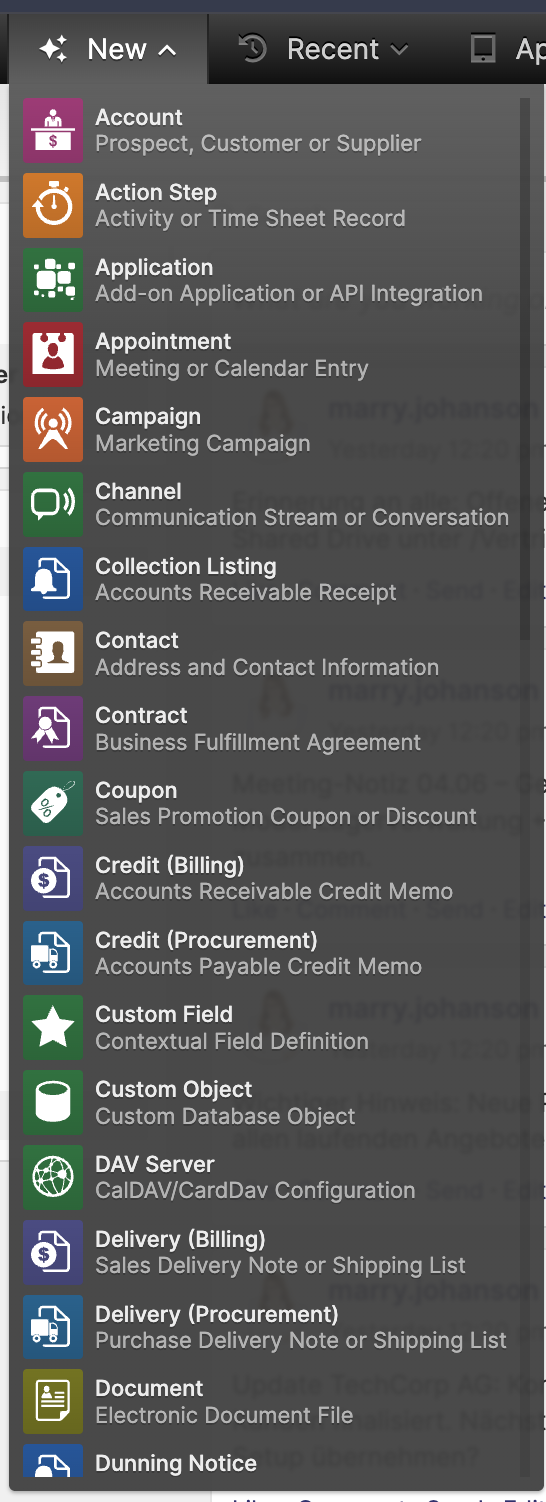
The New menu allows you to quickly create a new element in ZeyOS, such as an email, an appointment, a contact, or a task. You can also open this menu by pressing the F2 key. Once the menu is open, you can start typing to quickly filter and select an element type.
Recent
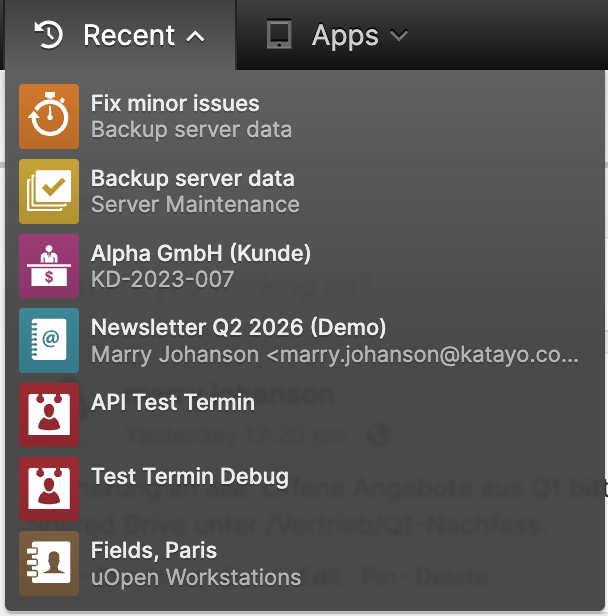
The Recent menu gives you quick access to all items you have recently opened. This is particularly useful when you need to switch between different elements frequently.
Apps
The Apps menu lists all applications your user account has access to. The available apps depend on the permissions assigned to your user through group memberships.
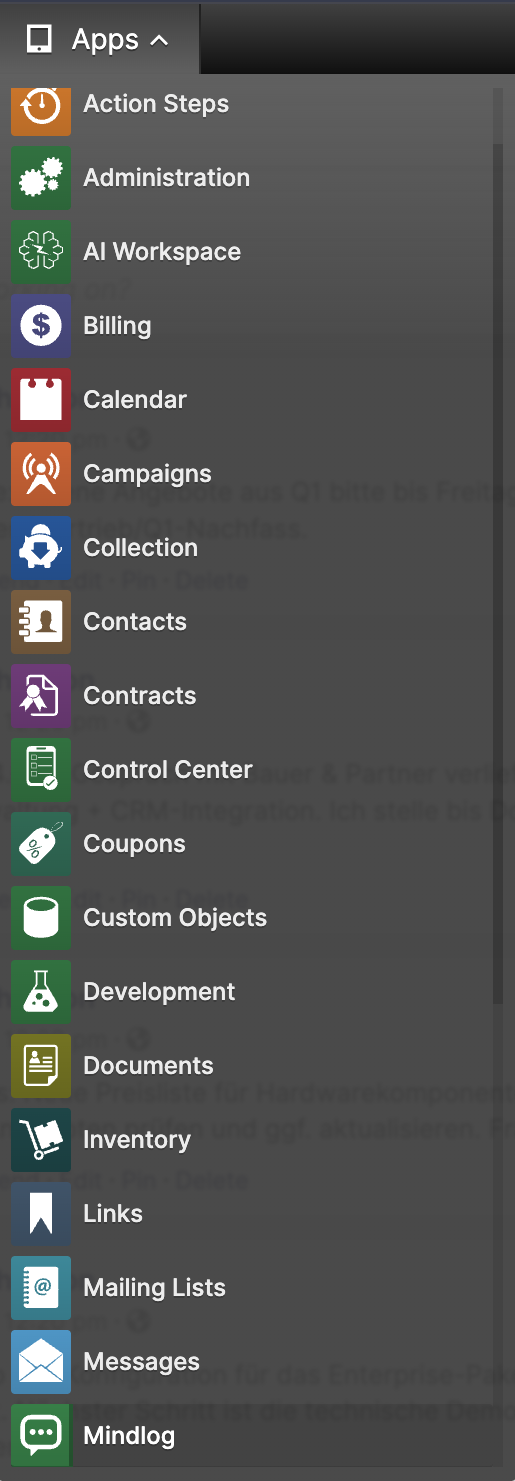
The Apps menu is scrollable. Some modules — such as Mailing Lists, Links, Production, Contracts, Payments, and Additional Objects — may only appear further down in the list. Scroll down or type to search if you cannot find a specific app by its icon alone.
The Shortcut Bar
The shortcut bar is a customizable row of app icons that appears to the right of the menu drawers. It allows you to access your most frequently used apps with a single click.
How to customize the shortcut bar
- Add an app: Open the Apps menu and drag an app icon onto the shortcut bar.
- Rearrange apps: Double-click on the shortcut bar to enter edit mode. You can then drag shortcuts to change their order.
- Remove an app: In edit mode, click the X button next to the app you want to remove.
The shortcut bar is user-specific — each user can configure their own set of shortcuts without affecting other users.
The Notification Indicators
A small red badge on an app icon in the shortcut bar indicates how many new or updated entries exist in that app that are relevant to you (e.g., items where you are the assigned user or owner). These notifications appear when another user makes changes to elements that affect you.
To preview notifications without opening the app, hover over the app icon. You can then mark individual notifications as read by clicking the checkmark icon, or click through to the element for more details.
The Search Field
The search field in the top-right corner allows you to search across all elements in ZeyOS. As you type, search results appear grouped by entity (e.g., Contacts, Transactions, Tasks).
Please keep the following in mind when using the search:
- Search results are limited to the 10 best results overall and 3 items per entity.
- The search only considers indexed fields such as name, reference number, or email address. For more specific searches — for example, searching within the body of an email — use the filter functions inside the respective app.
The User Menu
Click on your profile picture in the top-right corner to open the user menu. It provides access to the following:
| Option | Description |
|---|---|
| My Profile | Edit your personal details, contact information, and profile picture. |
| Control Center | Access the ZeyOS Control Center for system configuration (admin users only). |
| Subscription | Manage the ZeyOS subscription and billing (admin users only). |
| User Management | Add, edit, and manage user accounts (admin users only). |
| Enhancements | Access development tools and extensions (admin users only). |
| Language | Change the interface language for your session. |
| Change Password | Update your login password. |
| Logout | Log out of your ZeyOS account. |