Status and Visibility
ZeyOS provides two key mechanisms to manage the lifecycle of elements: Status tracks the progress of an element, and Visibility controls whether an element appears in the default view, is archived, or is marked as deleted.
Status
Many ZeyOS modules — such as Tasks, Tickets, Transactions, Campaigns, and Payments — use a status field to indicate the current progress of an element. The status field is tailored to each module, offering options that make sense for the specific type of data.
Status helps you:
- Track progress — See at a glance which elements are open, in progress, completed, or canceled.
- Filter efficiently — Use status-based filters in the sidebar to quickly find relevant elements.
- Communicate state — Indicate to other users which elements require attention and which are resolved.
Common Elements vs. Transactional Elements
ZeyOS distinguishes between two types of elements when it comes to status management:
| Type | Status Behavior |
|---|---|
| Common elements (e.g., Tasks, Contacts, Notes) | You can select and change the status freely at any time. |
| Transactional elements (e.g., Invoices, Orders, Payments) | Status changes are controlled through specific actions (e.g., booking, canceling, completing). You cannot manually set the status to an arbitrary value. |
This distinction ensures that transactional data remains consistent. For example, an invoice can only move to "Booked" status by performing the booking action, which also triggers related accounting entries.
Filtering by Status
In the filter view, the right sidebar provides status-based filter options at the top. Depending on the app, these may include:
- Drafts
- Open items
- In progress
- Completed
- Canceled
Click on any status option to filter the view accordingly.
Visibility
Visibility determines whether an element appears in the default view or is hidden. Every element in ZeyOS can have one of three visibility states:
| Visibility | Description |
|---|---|
| Regular | The element is active and appears in the default view. |
| Archived | The element is hidden from the default view but preserved for reference. |
| Deleted | The element is moved to the "Deleted" folder. It is not permanently removed. |
How to Change Visibility
You can change the visibility of one or more elements in two ways:
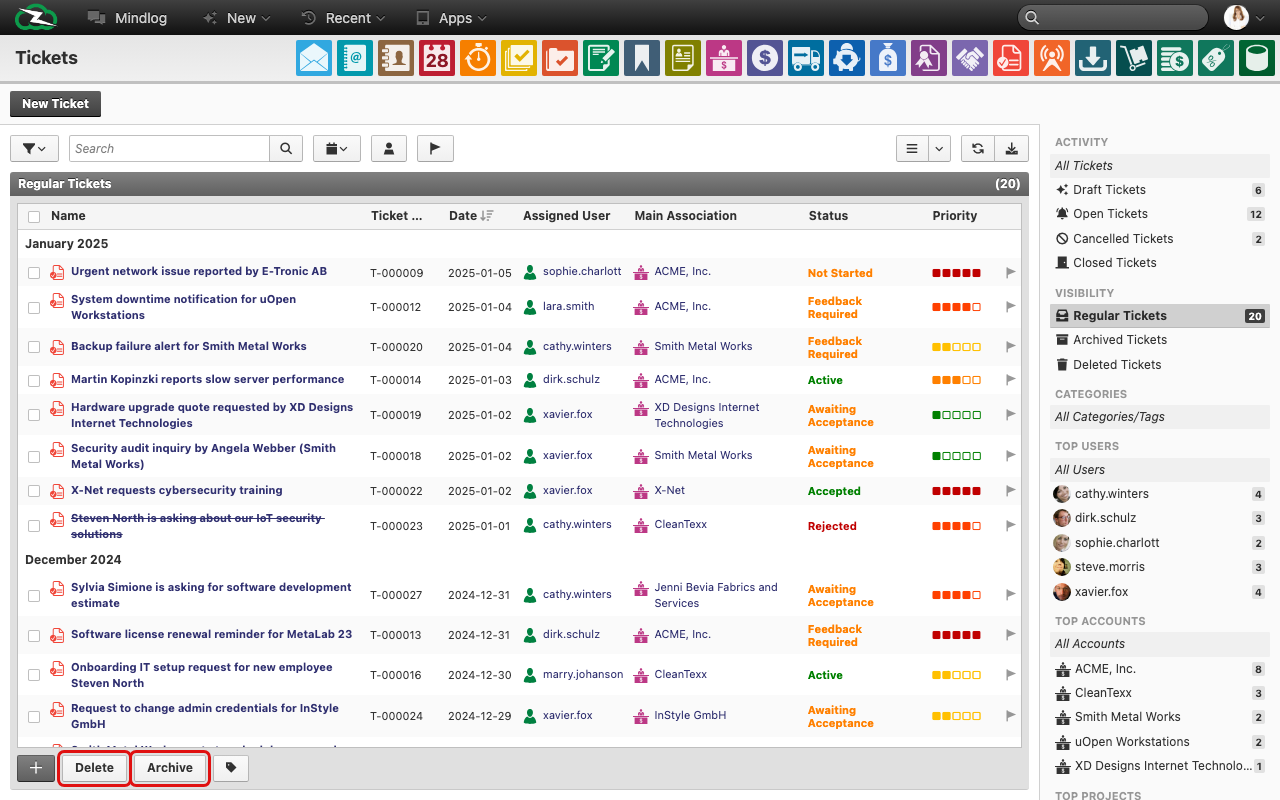
- From the filter view (overview): Select the elements using their checkboxes, then click Archive or Delete in the action bar below the table.
- From the detail view: Use the Archive or Delete actions available in the element's toolbar.
Viewing Archived or Deleted Elements
Archived and deleted elements are not gone — they are simply hidden from the default view. To see them:
- In the filter view, locate the visibility filter in the middle of the right sidebar.
- Select Archived or Deleted to switch to the respective view.

Elements in these views are marked with a corresponding icon to distinguish them from regular elements.
Restoring and Moving Elements
Within the Archived or Deleted views, you can:
- Restore an element back to Regular visibility.
- Move an element between visibility states (e.g., from Deleted to Archived).
This means that deleting an element in ZeyOS is a soft delete — the element is moved to the Deleted folder first and not immediately removed permanently. This provides a safety net against accidental deletions.