Sharing Files and Messages with Mindlog
Mindlog is the central communication and activity hub of ZeyOS. After logging in, the Mindlog dashboard is the first thing you see. It displays all activities, messages, and updates from other users across all modules in one central place.
Mindlog is a news feed, not a module with its own data objects. It aggregates updates from other modules (contacts, tasks, transactions, etc.) into a single stream. You do not create "Mindlog records" — instead, Mindlog automatically shows relevant activity from across the platform.
What Mindlog Does
Mindlog serves multiple purposes:
- Internal communication — Post messages, share updates, and discuss topics with your team without relying on internal emails.
- Activity feed — See what is happening across the organization: new entries, status changes, comments, and more.
- File sharing — Attach and share documents, images, videos, and other files directly within Mindlog posts.
- Contextual discussions — Attach comments to specific objects (e.g., a contact, a task, or a transaction) so discussions stay connected to the relevant data.
- Noticeboard — Pin important messages so they remain visible at the top of the feed.
One of the biggest advantages of Mindlog is the ability to replace internal emails entirely. Instead of forwarding messages or sending inquiries by email, you can discuss processes directly in Mindlog. This keeps your email inbox clean for external communication. New employees also benefit, because they can access older internal conversations simply by being added to the appropriate user group.
The Mindlog Dashboard
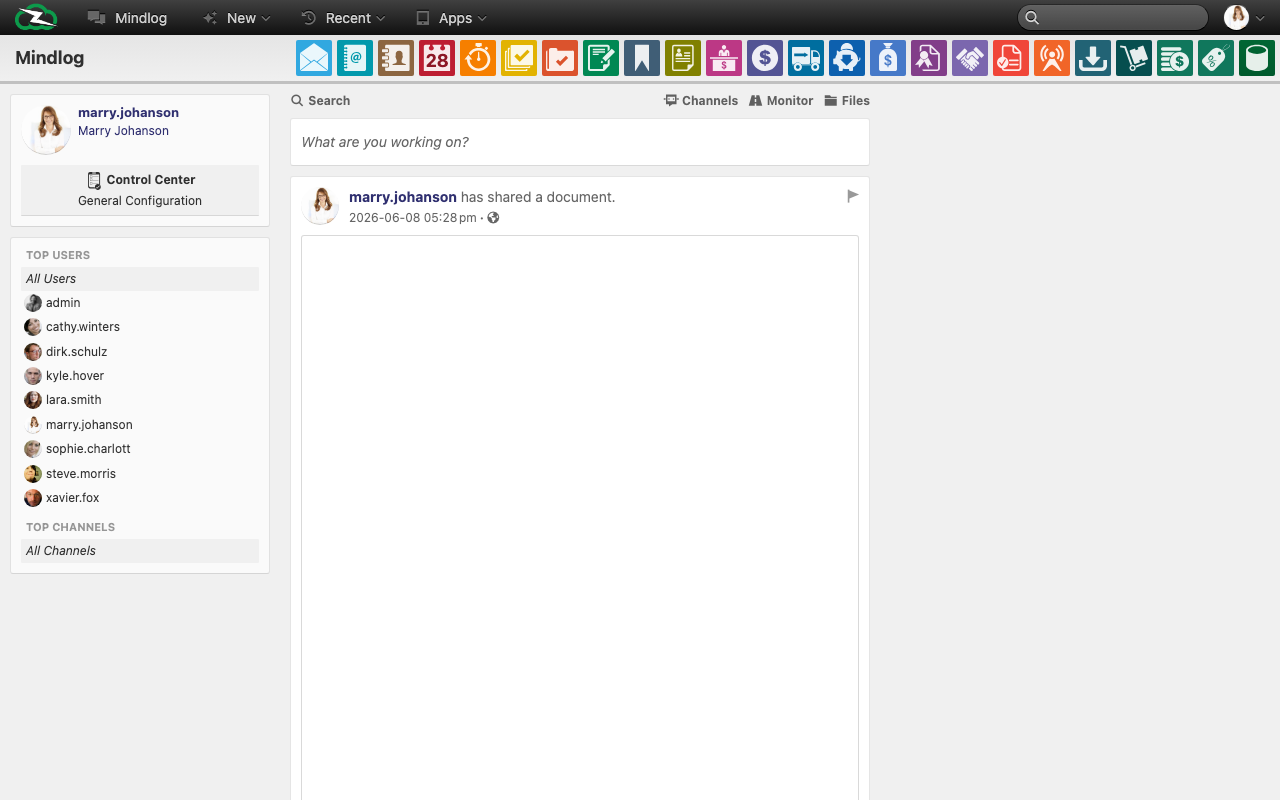
The Mindlog dashboard consists of the following areas:
- The message input field at the top — Type a message to post directly to the Mindlog feed.
- The activity feed in the center — Displays all posts, comments, and activities in reverse chronological order.
- The left sidebar — Shows your user profile, a link to the Control Center, a list of top users, and top channels.
- The toolbar — Provides access to the search, channels, the activity monitor, and file views.
Creating a Mindlog Entry
There are two ways to create a Mindlog entry:
1. Post directly from the dashboard
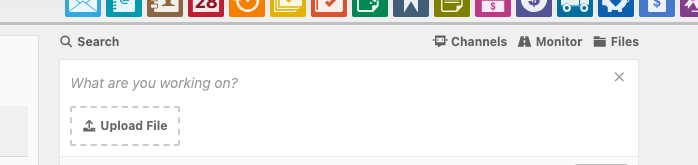
Click into the message input field at the top of the Mindlog dashboard and type your message. You can also:
- Upload a file by clicking the attachment icon.
- Set the owner to control visibility (Public, Private, or a specific group).
- Select a recipient to send the message directly to a specific user.
- Set a pin date to keep the message pinned at the top until a specific date.
Click Post to publish your message.

2. Add a record to any object
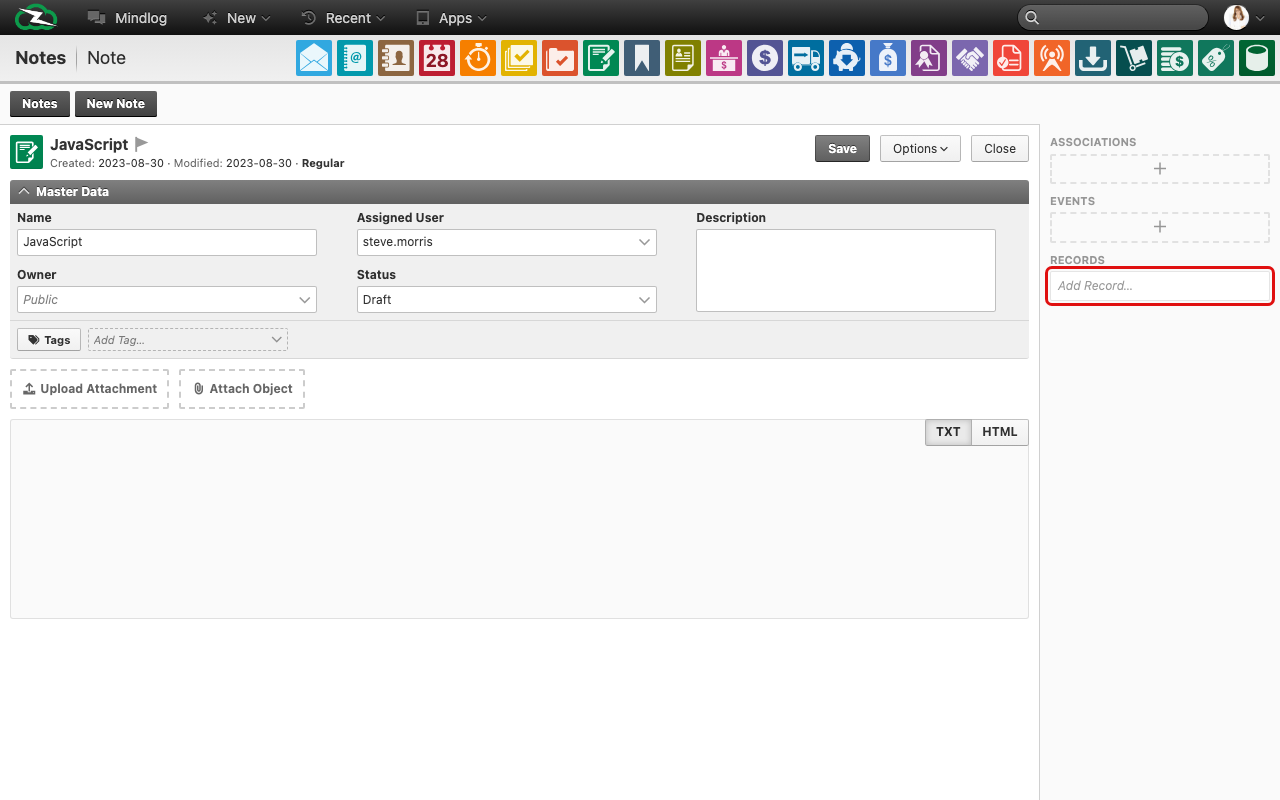
You can also create Mindlog entries from within any object (e.g., a contact, a task, or a transaction). Navigate to the object, open the Records section in the right sidebar, and click Add an entry.
This method links the Mindlog entry directly to the object, so anyone reading the entry can click through to the related object immediately.
Controlling Visibility
When creating a Mindlog entry, you can control who can see it by setting the Owner:
| Owner Setting | Who Can See It |
|---|---|
| Public | All users in the organization. |
| Private | Only you. Useful for personal notes attached to an object. |
| A specific group | Only members of that group. |
You can also set a Recipient to direct the message to a specific user, who will receive a notification.
Hiding Entries from Mindlog
If you want to add a note to an object that should not appear in the global Mindlog feed, check the Hide from Mindlog option when creating the record. This is useful for object-specific memos that are only relevant in the context of that particular element and would otherwise create noise in the global feed.
Searching and Filtering
You can search for Mindlog entries using the search bar at the top of the Mindlog dashboard. Additionally, you can filter entries by:
- Channel — Focus on a specific topic or team channel.
- User — Show only entries from a specific user.
- Entity — Filter by the type of object the entries relate to.
Best Practices
- Use Mindlog instead of internal emails — Keep your inbox for external communication and use Mindlog for all internal discussions.
- Attach entries to objects — Whenever a discussion relates to a specific contact, task, or transaction, create the entry from within that object. This keeps the context clear.
- Set appropriate visibility — Use group ownership to ensure sensitive information is only visible to the right people.
- Pin important announcements — Use the pin date feature to keep important messages visible at the top of the feed.