Managing Permissions
ZeyOS uses a two-level permission system to control who can do what. The first level determines which apps (functions) a user can access. The second level determines which objects (data) a user can see and edit. Understanding this system is essential for setting up ZeyOS correctly.
Overview of the Permission System
| Level | Controls | Managed By |
|---|---|---|
| Function access | Which apps a user can open and use | Group memberships |
| Object access | Which individual records a user can view and edit | Object ownership |
By default, a newly created user has no permissions and cannot access any apps until they are added to at least one group.
Function Access: Groups
Groups are the primary mechanism for granting users access to apps. An administrator creates groups and assigns specific app permissions to each group. Users who are members of a group inherit all the app permissions defined for that group.
How Groups Work
- Each group has a set of allowed apps (functions).
- A user who belongs to multiple groups can access the combined set of apps from all their groups.
- You can assign users to groups either when creating/editing the group or when editing the user profile.
Creating a Group
To learn how to create and manage groups, see Group Management.
Tips
- If every user should have access to all apps, create a single group with all app permissions and add all users to it.
- When a user is added to a new group, they must log out and log back in for the change to take effect. Simply reloading the page is not sufficient.
Object Access: Ownership
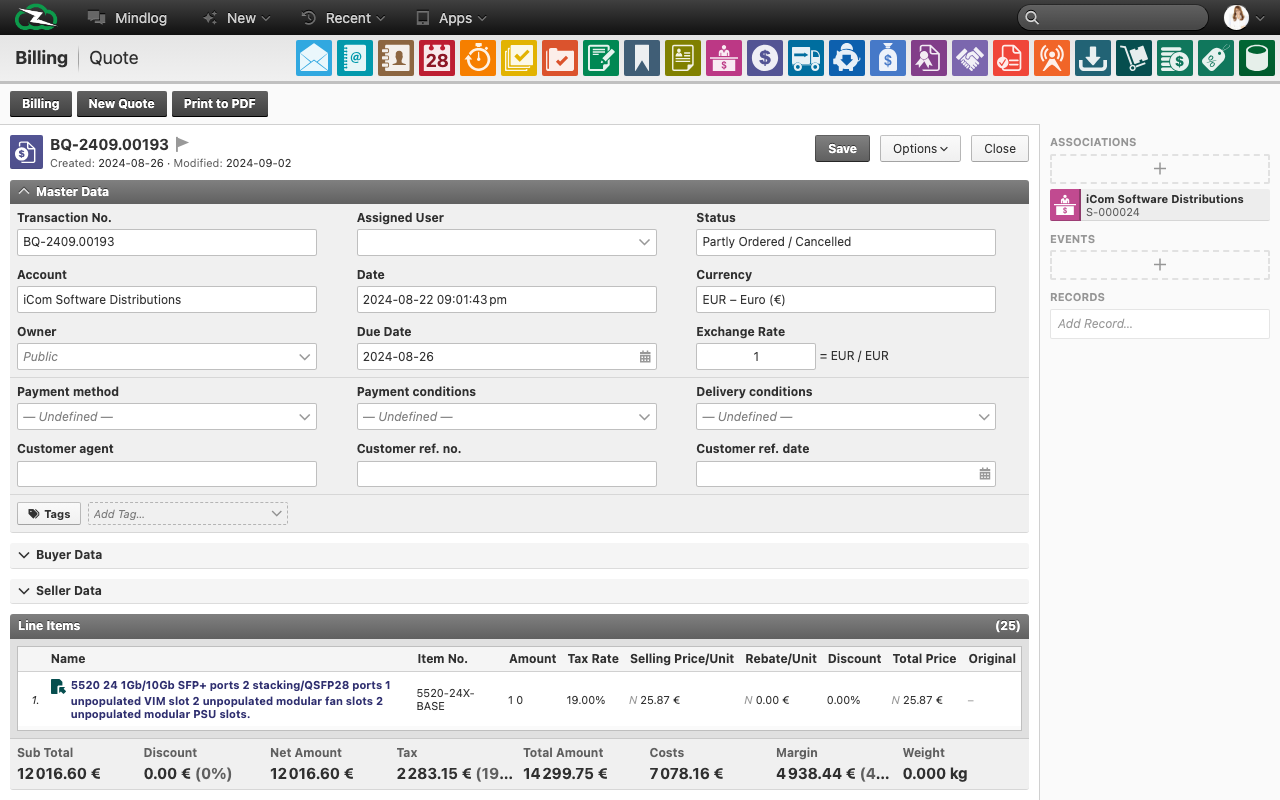
In addition to function access, every object in ZeyOS (contacts, transactions, emails, tasks, etc.) has an owner that determines who can view and edit it.
Ownership Options
| Owner | Access |
|---|---|
| Public | All users in the organization can view the object. |
| Private | Only the object's creator/owner can view it. |
| A specific group | Only members of that group can view and edit the object. |
How Ownership Affects Visibility
- By default, users can see all objects marked as Public.
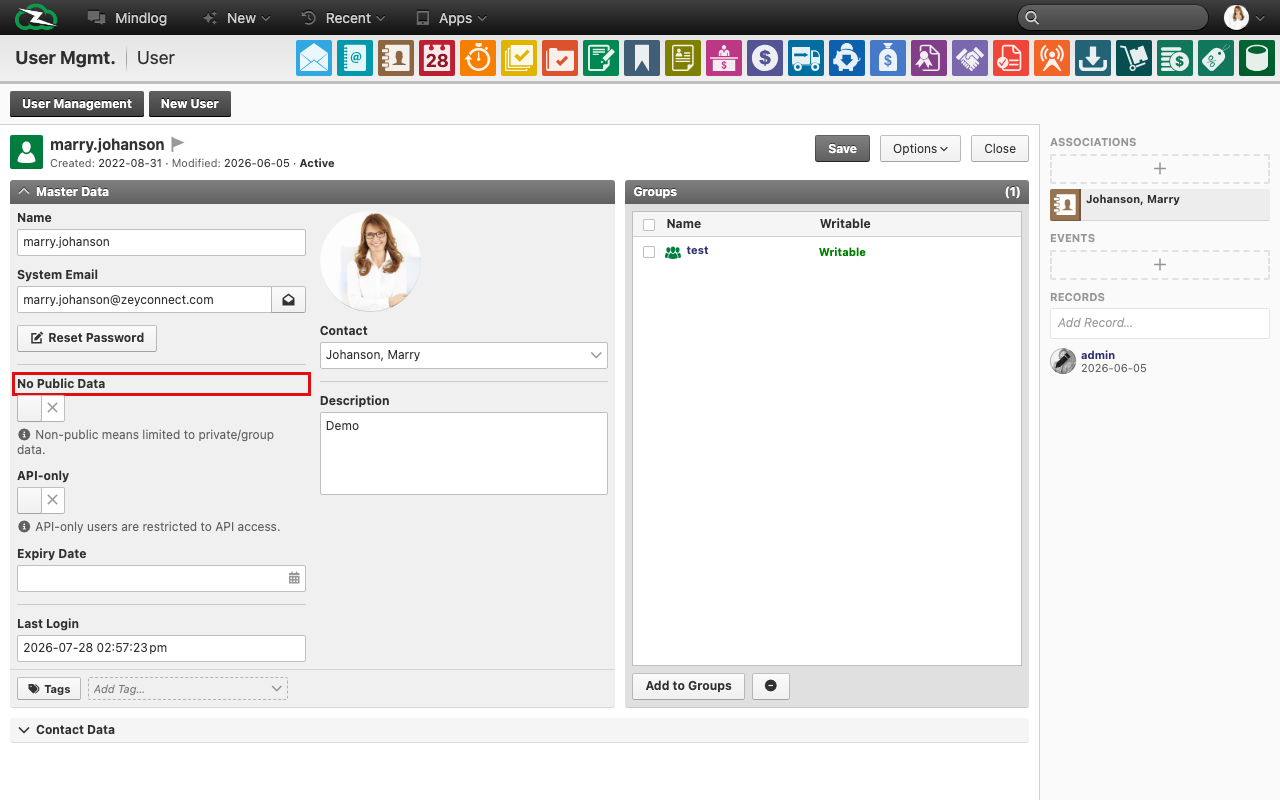
- This default behavior can be changed per user: In the user profile, enable the No shared data option. This restricts the user to only see objects that belong to their group(s) or to them personally — even objects marked as "Public" will be hidden.
- If a user has access to the app containing an object but not to the object itself, only basic information (such as the element's name) will be visible in overviews and linked references.
Private Objects
For sensitive data — such as personal activities or confidential notes — set the owner to Private. This ensures that no other user can access the object.

Group-Owned Objects
When you set a group as the owner, only members of that group can view and edit the object. Note that you can only select groups that you are a member of.
Combining Both Levels
The two permission levels work together:
- A user must first have access to the app (via group membership) to see any elements in that app.
- Within the app, the user can only see objects they are authorized to view (based on ownership settings).
For example, a user in the "Sales" group can open the Transactions app, but they can only see transactions that are either Public, owned by them, or owned by a group they belong to.
Further Reading
- User Management — How to create and manage user accounts.
- Group Management — How to create groups and assign permissions.