Using Events and Associations
ZeyOS allows you to link any objects together and create calendar events from within any record. These features help you find related information quickly, maintain context across modules, and organize your schedule.
Associations
Associations are links between two objects in ZeyOS. They allow you to connect related data — for example, linking a customer email to the sales order it triggered, or connecting a contact to a project they are involved in.
Where to Find Associations
In the detail view of any object, the right sidebar displays all associated objects, events, and records.

How to Create an Association
- Open the detail view of the object you want to link.
- In the right sidebar, navigate to the Associations section.
- Click Add Association.
- Search for and select the target object you want to link to.
- Optionally, enter a description to explain the nature of the relationship (e.g., "triggered by", "related to", "follow-up for").
- Save the association.
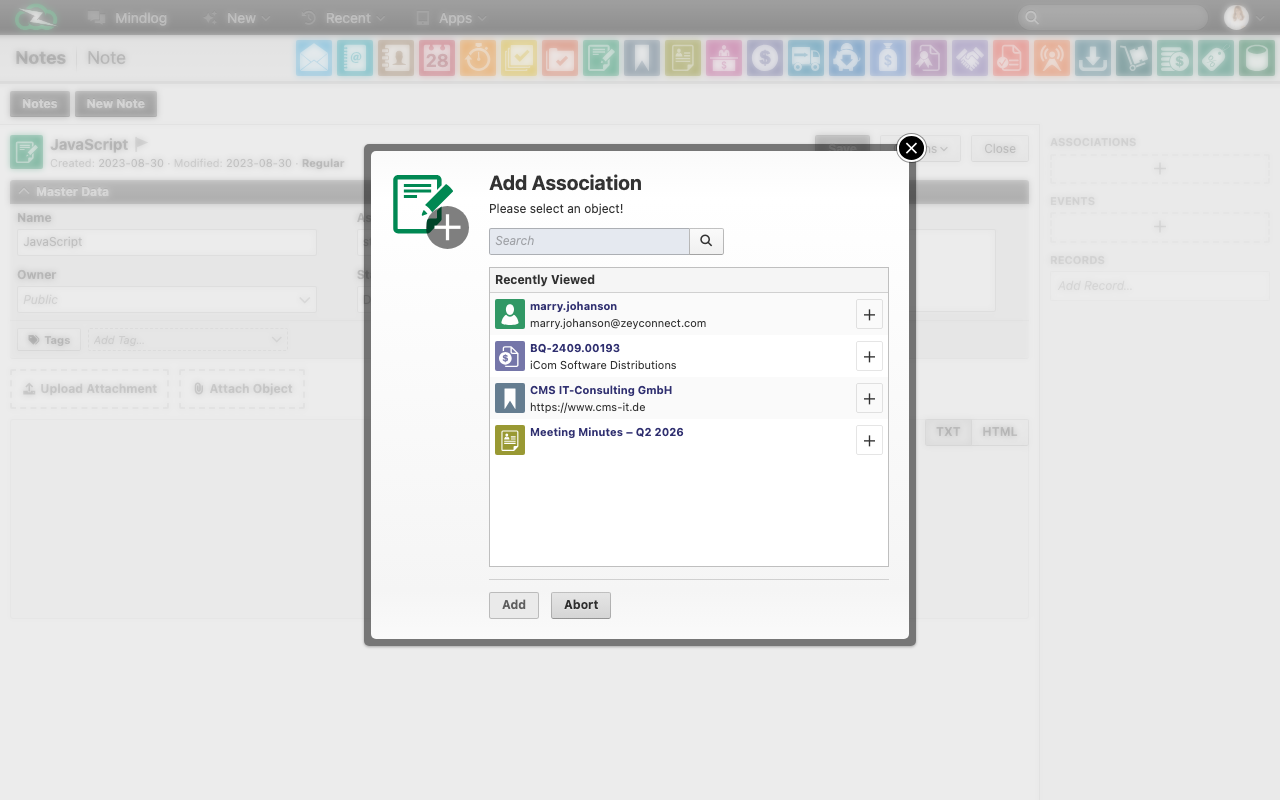
The association is bidirectional — it will appear in the sidebar of both linked objects.
Records
Records are comments or notes that can be attached to any object. They appear in the object's sidebar and — unless hidden — also in the Mindlog feed.
How to Add a Record
- Open the detail view of any object.
- In the right sidebar, navigate to the Records section.
- Click Add an entry.
- Write your message.
- Set the Owner to control visibility (Public, Private, or a specific group).
- Optionally, select a Recipient to direct the message to a specific user.
- Check Hide from Mindlog if the record should only be visible within this object.
- Click Post.
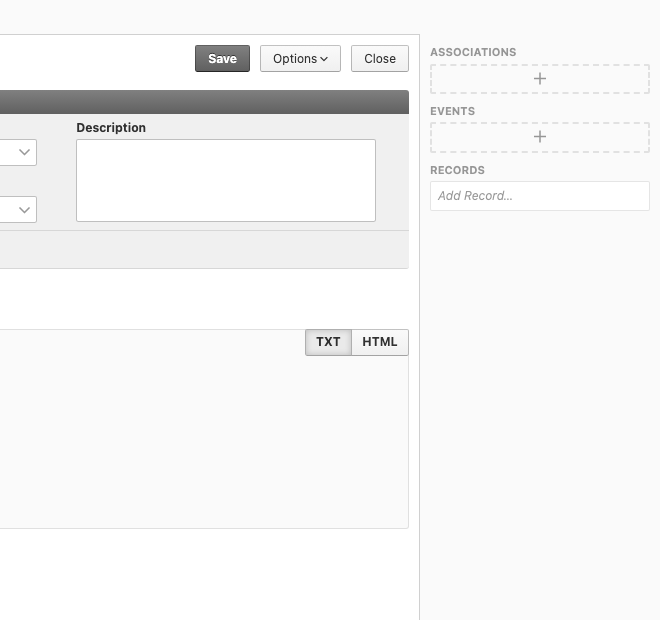
Note: You cannot change the owner or recipient of a record after saving it.
Events
Events are calendar entries that can be created from within any object. Use them when an object leads to an appointment, a deadline, or a task that needs to be scheduled.
How to Create an Event
- Open the detail view of any object.
- In the right sidebar, navigate to the Events section.
- Click Add Event.
- Enter the event details: title, date, time, and duration.
- Set the Owner to control who can see the event.
- Optionally, assign a color to make the event stand out in the calendar.
- Save the event.
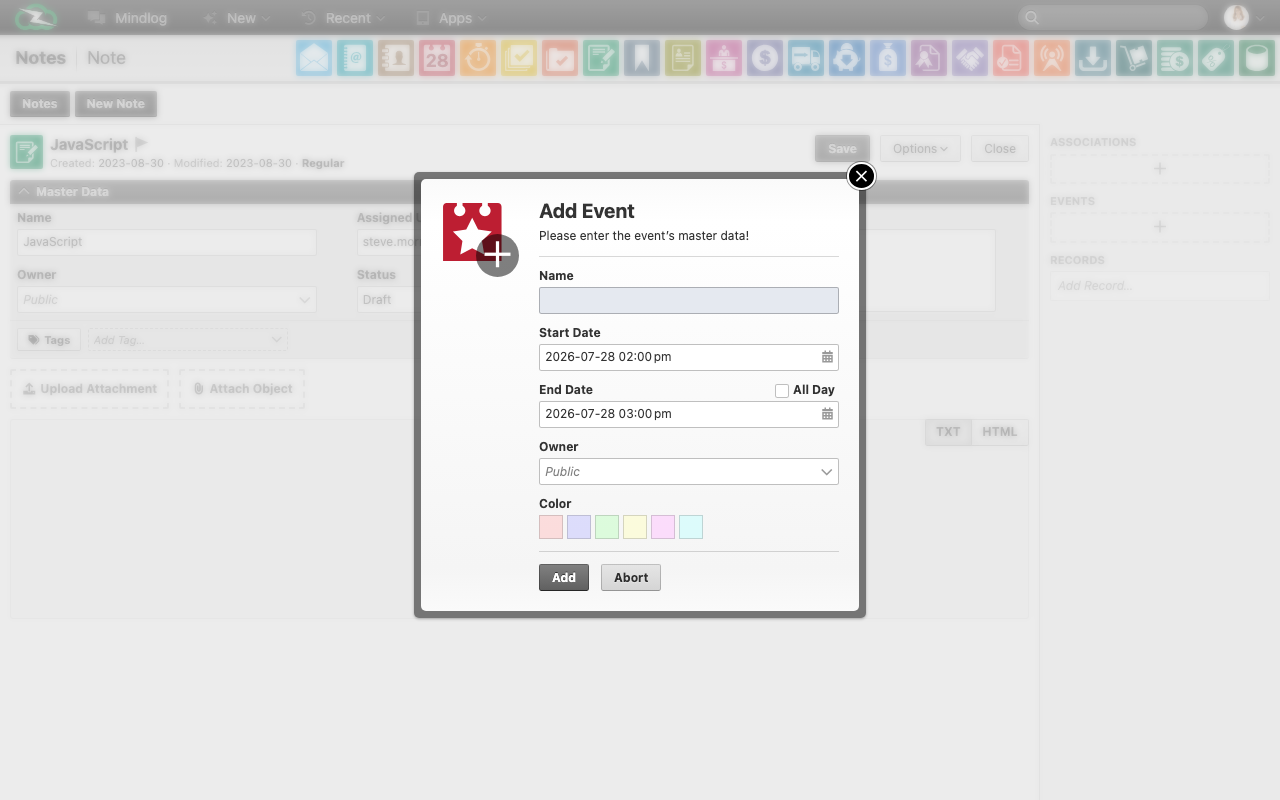
The event will appear in the ZeyOS calendar and remain linked to the source object, making it easy to navigate between the event and its context.
Use Cases
| Scenario | Feature to Use |
|---|---|
| Link a customer inquiry email to the resulting sales order | Association |
| Discuss an invoice with a colleague | Record (Mindlog entry) |
| Schedule a follow-up meeting based on a project task | Event |
| Add a private note to a contact for your own reference | Record (Private, hidden from Mindlog) |