Using the Inbox
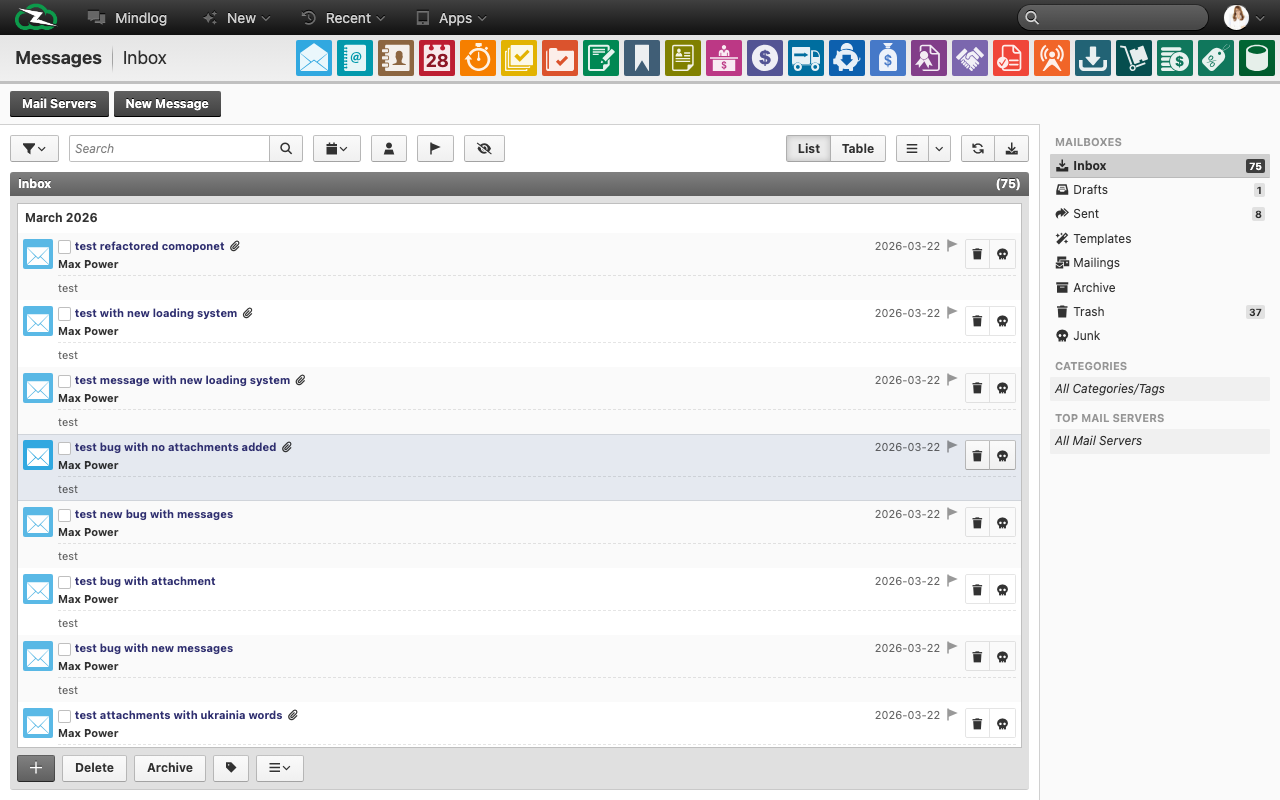
The Messages module is ZeyOS's integrated email workspace. It combines personal or shared mailbox handling with templates, sent mail, drafts, and a dedicated Mailings mailbox for bulk communication.
What This Page Is For
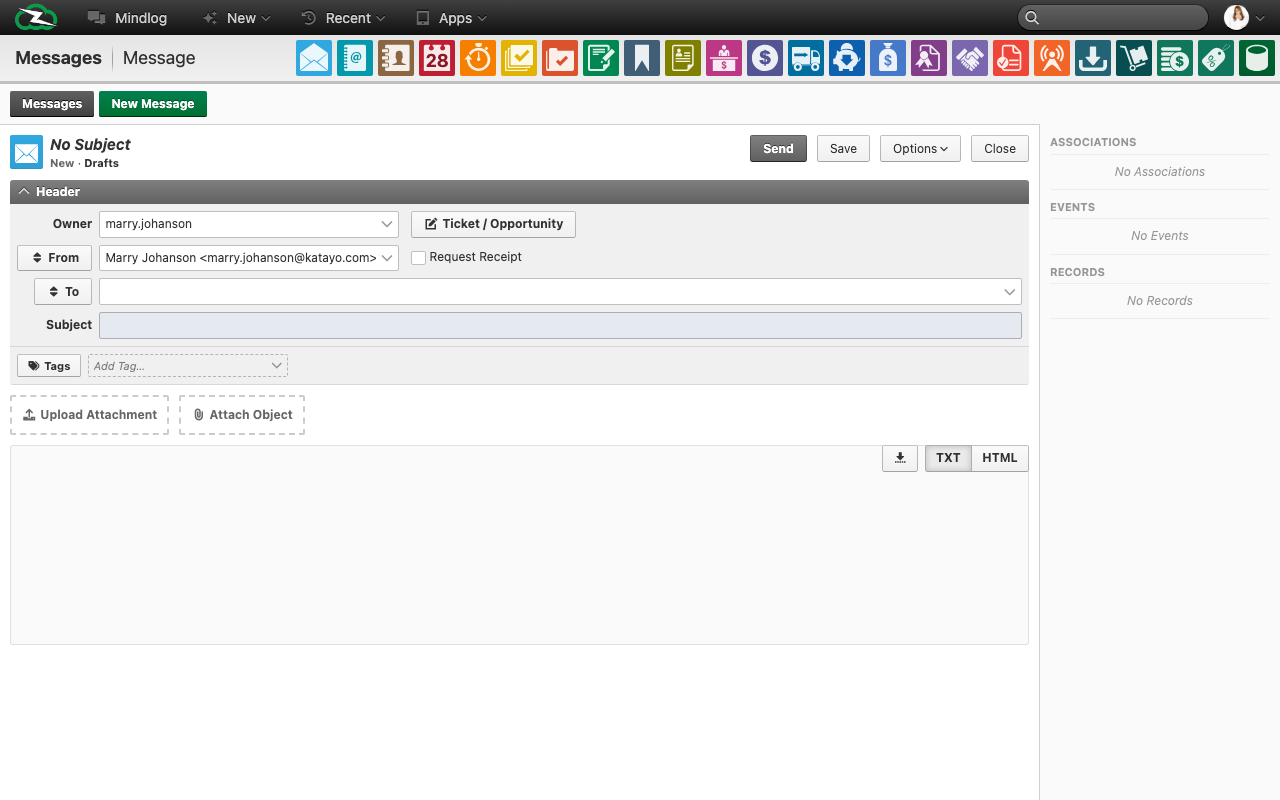
Use this page for day-to-day email communication: reading incoming mail, replying, composing new messages, organizing mailboxes, and handling routine message actions.
What the Live Module Looks Like
In the live demo, the module includes:
- a Mailserver action
- a New Mailing action
- time-based filters
- List and Table views
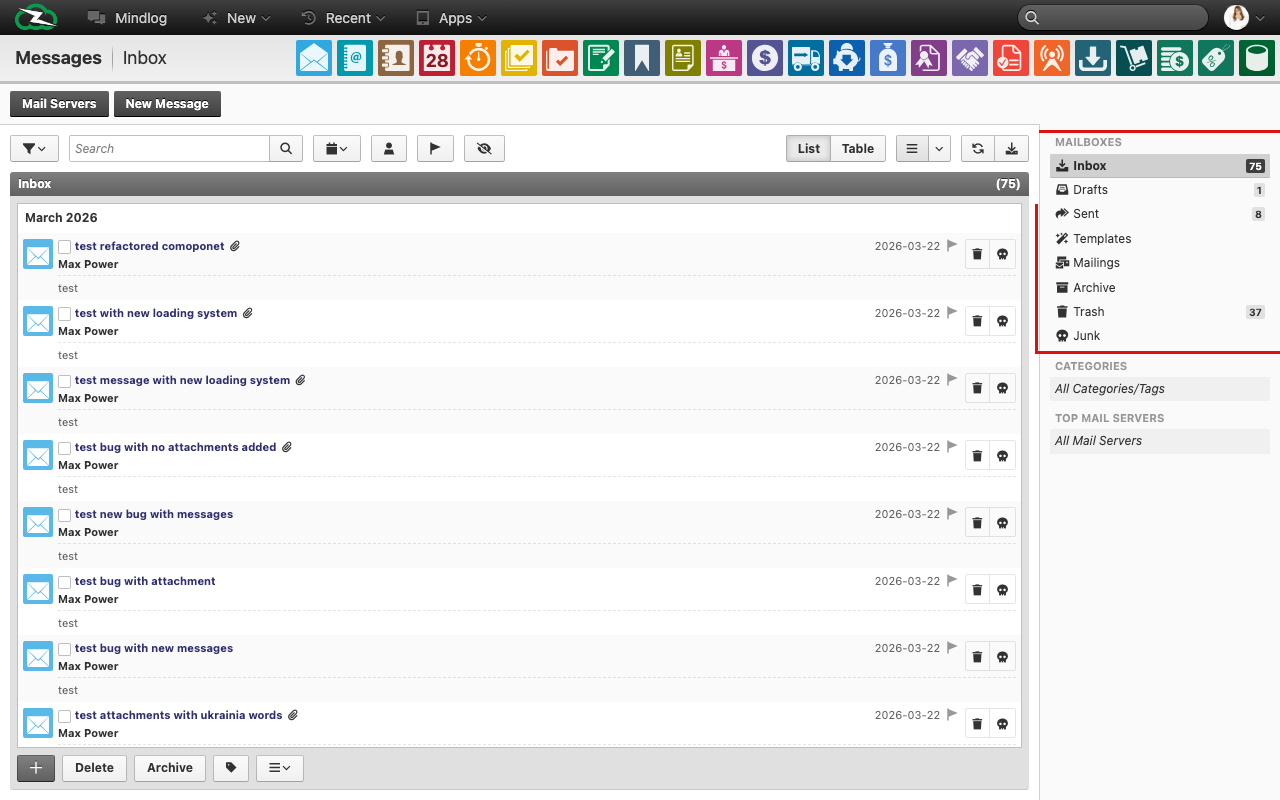
- mailbox navigation for Inbox, Drafts, Sent, Templates, Mailings, Archive, Deleted, and Trash / Abfall
- bulk actions such as Delete, Archive, Reply all, Forward, Mark read, Mark unread, and Move
One important detail: depending on the last used context, the Messages module may open on a Mailings view rather than a classic inbox view. Users should understand that both belong to the same module.
Messages vs Mailings vs Templates
- Messages are the day-to-day individual emails you read and reply to.
- Mailings are bulk or broadcast-style outbound messages managed inside the same module.
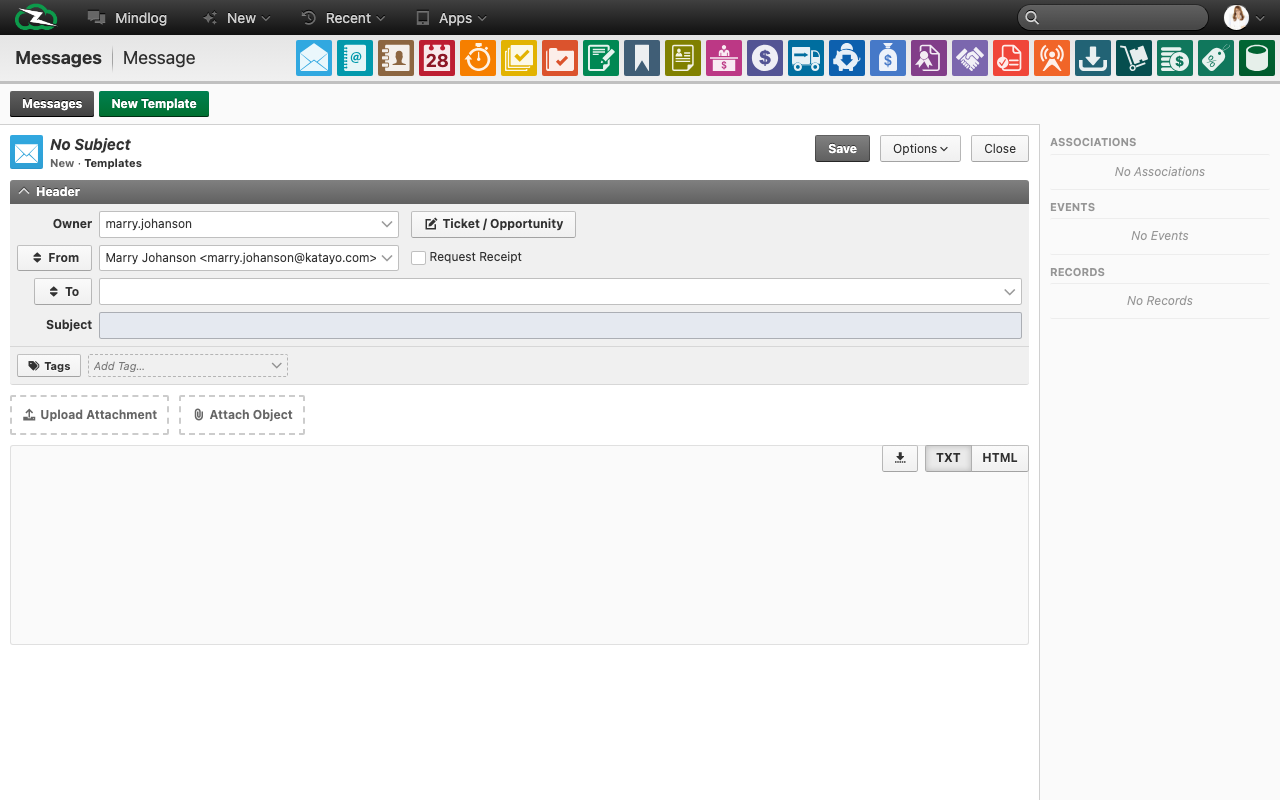
- Templates are reusable starting points for recurring communication.
This distinction is critical because many users open the module, land on Mailings, and assume they are in a separate app.
Typical Inbox Workflow
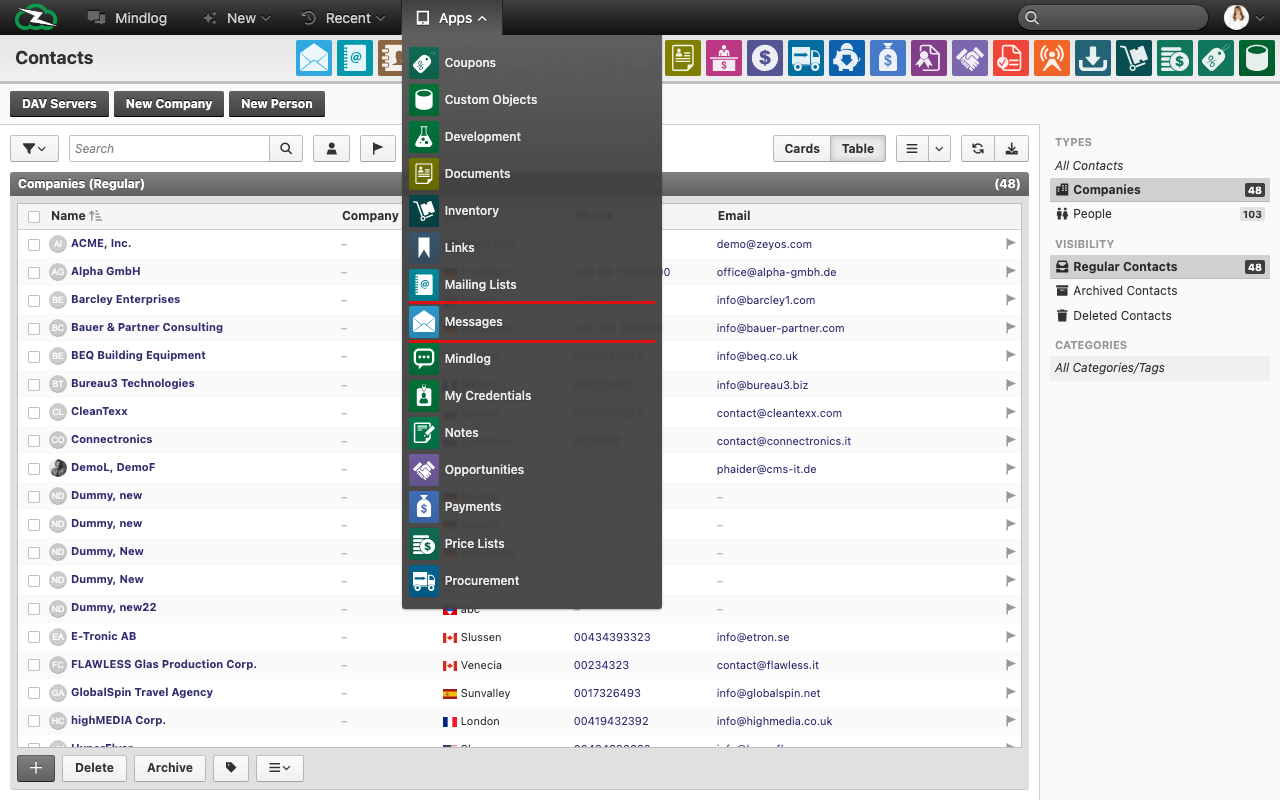
- Open Apps > Messages.
- Select the relevant mailbox in the right sidebar, usually Inbox for received mail.
- Use date or text filters to narrow the visible messages.
- Open a message, review its context, and reply, forward, archive, or move it as needed.
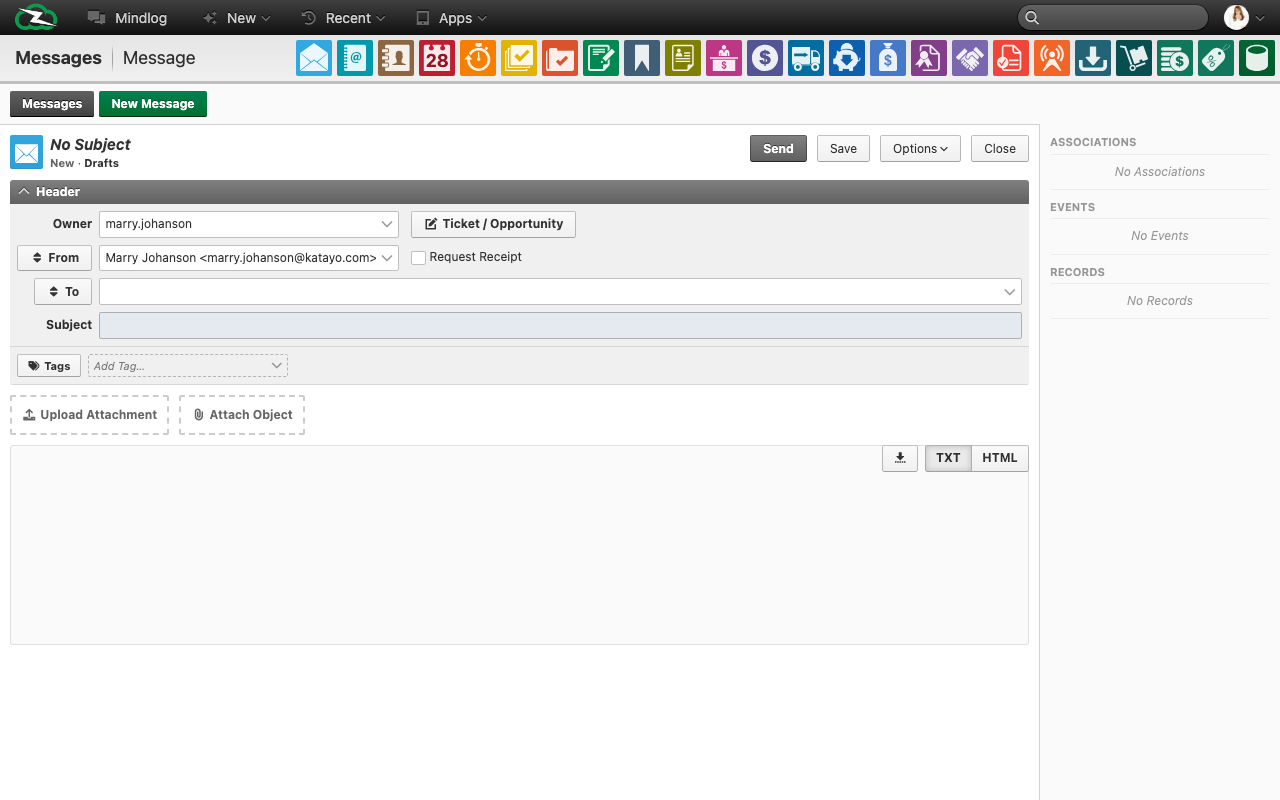
Organizing Messages
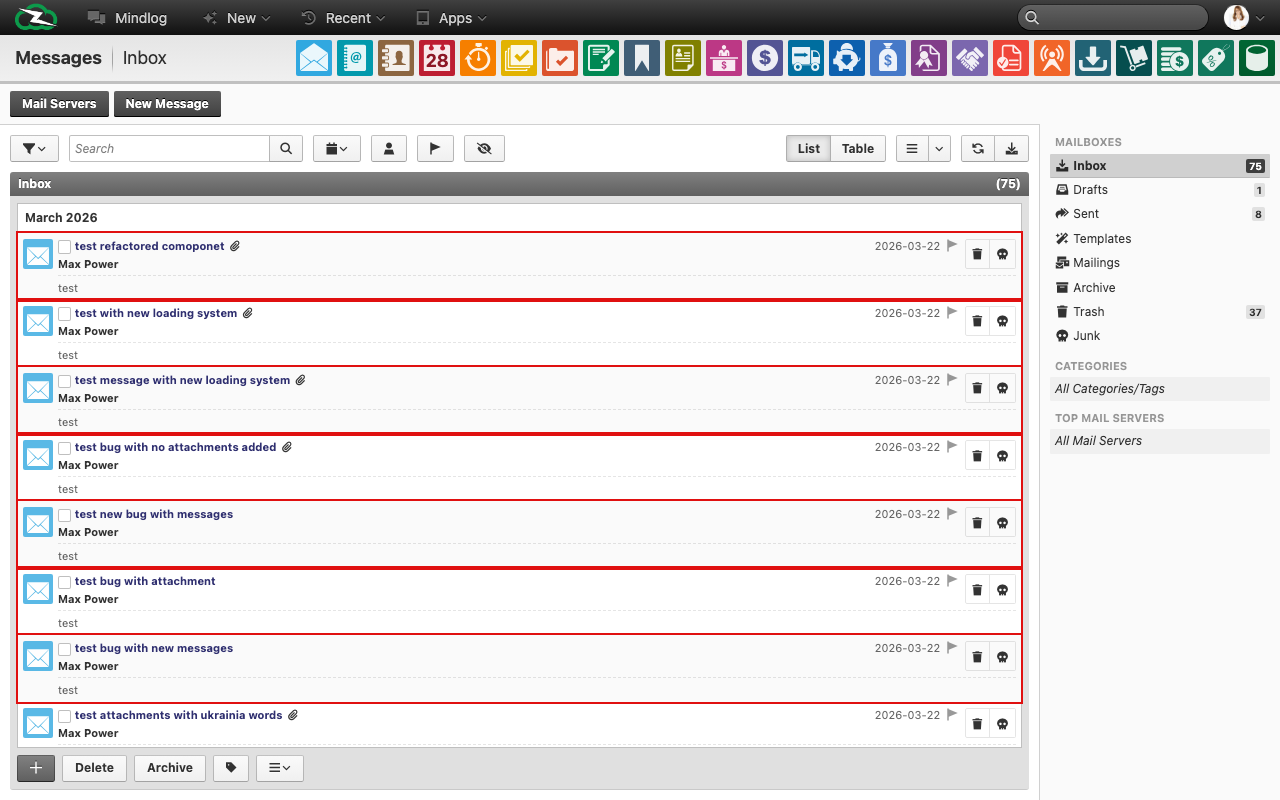
The mailbox structure has clear purposes:
- Inbox for received mail
- Drafts for unfinished work
- Sent for completed individual messages
- Templates for reusable starting points
- Mailings for bulk or broadcast communication
- Archive for kept but inactive messages
- Deleted and Trash for removal workflows
Message Actions That Need Clearer Training
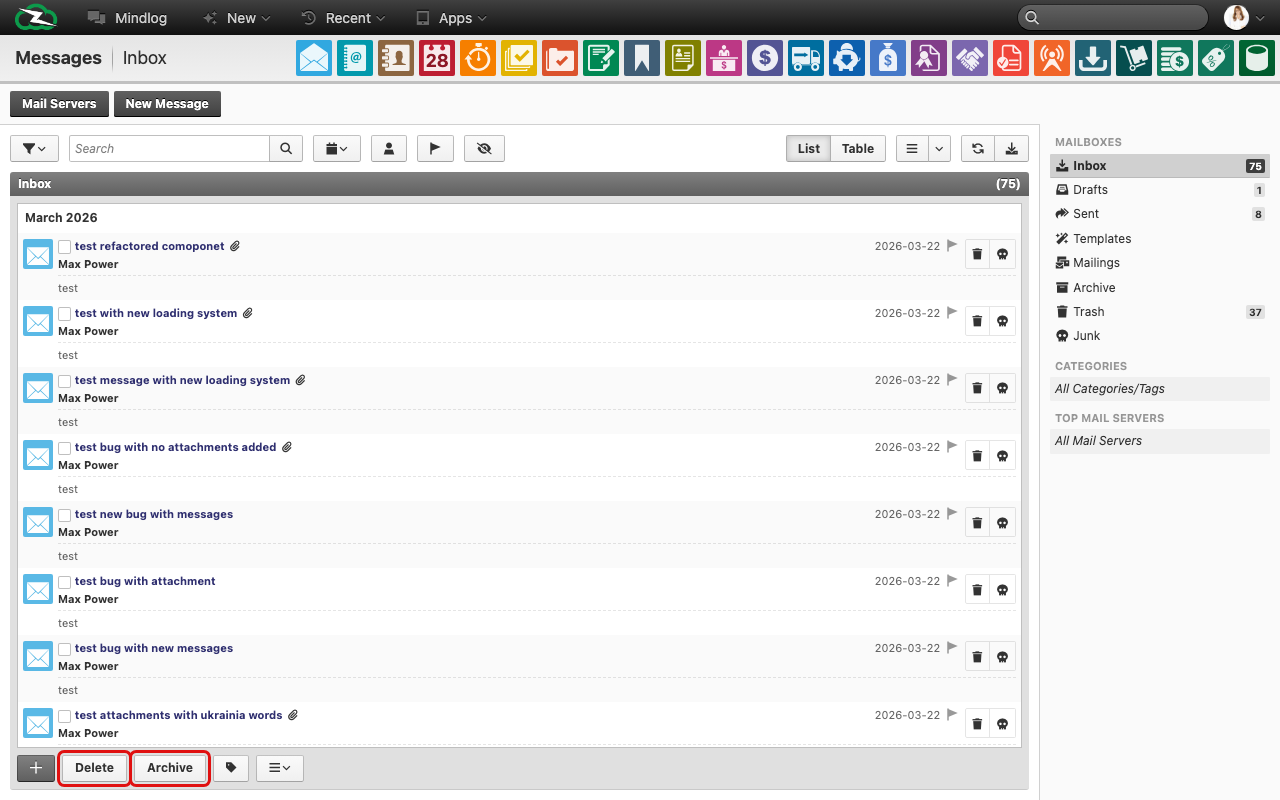

Users often need explicit guidance on these points:
- Messages and Mailings live in one module, but they serve different communication styles.
- Filtering by time period is built into the live module and should be used before manual searching through long mail histories.
- Bulk actions are available directly from the list and can change multiple messages at once.
Best Practices
- Keep shared mailboxes clearly separated from personal mailboxes through server naming and sender discipline.
- Move old but relevant messages to Archive instead of leaving them in active folders.
- Use Templates for recurring replies or standard communication.
- Use Mailing Lists when the same message must be sent to a managed distribution group.
Related Topics
- Managing Mailing Lists - Bulk communication and recipient groups.
- Setting up Mail Servers - Technical mailbox connection.
- Servers - Admin reference for mail and DAV connections.